React Native SDK (Legacy)
⚠️ SDK v1 (Legacy)
This documentation describes App Upgrade React Native SDK v1.x.
A newer TypeScript-based SDK v2 is now available with a cleaner API and improved type safety.
👉 Read the recommended v2 documentation here:
https://appupgrade.dev/docs/react-native-sdk.html
The App Upgrade React Native SDK helps you easily integrate with the App Upgrade service. The SDK communicates with App Upgrade and checks your app version against the version information configured in App Upgrade. Based on the response, it will:
- Show a non-dismissable update popup when the app requires a forced update. When the user taps it, the SDK opens the app store so the user can update.
- Show a dismissable update popup when the app should be updated but the update is not mandatory.
- Do nothing when no action is required.
Installation
Install via npm
npm i app-upgrade-react-native-sdk --save
How to use?
Follow the Getting Started guide to create project and get the x-api-key.
Import the SDK and use it.
import {appUpgradeVersionCheck} from 'app-upgrade-react-native-sdk';
- Integrate in your app.
const App: () => Node = () => {

  const xApiKey = "MDNmNmZkNDEtNmNkMi00NzY3LThjOWEtYWYxMGFjZWQ0ZjI2"; // Your project key
  const appInfo = {
    appId: 'com.android.com' or '1549468967', // Your app id in Google Play Store or App Store
    appName: 'Wallpaper app', // Your app name
    appVersion: '1.0.0', // Your app version
    platform: 'android', // App Platform, android or ios
    environment: 'production', // App Environment, production, development
    appLanguage: 'es' //Your app language ex: en, es etc. Optional.
  };

  // Alert config is optional
  const alertConfig = {
    title: 'Please Update',
    updateButtonTitle: 'Update Now',
    laterButtonTitle: 'Later',
    onDismissCallback: () => { console.log('Dismiss') },
    onLaterCallback: () => { console.log('Later') }
  };

  appUpgradeVersionCheck(appInfo, xApiKey, alertConfig);

  return (
      <SafeAreaView style={backgroundStyle}>
        ...
      </SafeAreaView>
  );
};
Note:
- For opening the App Store or Google Play Store the app should be live.
- It might not be able to open the App Store or Google Play Store in simulator. You can try it in physical device.
- If you are using the same code base for both android and ios than you can detect the platform and provide the appId.
- You can find a sample app from here app-upgrade-react-native-demo-app
- Read detailed blog on how to integrate from here How to upgrade/force upgrade React Native app
Fields
- appId: App Id of your app. Know how to find appId for your app. (Required)
- appName: Your app name. (Required)
- appVersion: Version of your app. (Required)
- platform: This could be android or ios (Required)
- environment: This could be for example development, int, production (Required)
- appLanguage: This is your app language. Example: en, es etc. This will be used to localize the update message. (Optional)
Customizing the Alert popup
You can optionally pass the alertConfig object to customize the alert popup.
- title: Main title shown to user.
- updateButtonTitle: Update button title shown to user.
- laterButtonTitle: Later button title shown to user.
Redirect user to store other than App Store or Google Play Store.
Supported Stores :
| Apple App Store | Google Play Store | Amazon Appstore | Huawei AppGallery | Other Android Markets |
|---|---|---|---|---|
| ✓ | ✓ | ✓ | ✓ | ✓ If your app marketplace is not one of these, you can pass your own store URL. |
If you want users to redirect to store other than App Store or Google Play Store. You can add these additional parameters preferredAndroidMarket.
- preferredAndroidMarket: PreferredAndroidMarket.AMAZON // or PreferredAndroidMarket.HUAWEI or PreferredAndroidMarket.OTHER If not provided default is Google Play Store. If the SDK cannot open the preferred marketplace because it is not available, the default Google Play Store listing will open.
- otherAndroidMarketUrl: 'https://someotherandroidmarket.com/app/id'// Required if preferredAndroidMarket is Other.
Example:
import {appUpgradeVersionCheck, PreferredAndroidMarket } from 'app-upgrade-react-native-sdk';

.....

const App: () => Node = () => {

  const xApiKey = "MDNmNmZkNDEtNmNkMi00NzY3LThjOWEtYWYxMGFjZWQ0ZjI2"; // Your project key
  const appInfo = {
    appId: 'com.android.com' or '1549468967', // Your app id in Google Play Store or App Store
    appName: 'Wallpaper app', // Your app name
    appVersion: '1.0.0', // Your app version
    platform: 'android', // App Platform, android or ios
    environment: 'production', // App Environment, production, development
    appLanguage: 'es' //Your app language ex: en, es etc. Optional.
    preferredAndroidMarket: PreferredAndroidMarket.AMAZON // or PreferredAndroidMarket.HUAWEI or PreferredAndroidMarket.OTHER If not provided default is Google Play Store. Optional
    otherAndroidMarketUrl: 'https://someotherandroidmarket.com/app/id'// Required if preferredAndroidMarket is Other.
  };

  appUpgradeVersionCheck(appInfo, xApiKey);

  return (
      <SafeAreaView style={backgroundStyle}>
        ...
      </SafeAreaView>
  );
};
Callbacks
SDK provides two callbacks.
onDismissCallback onDismissCallback callback is called when the dismisses the popup, by clicking elsewhere on the screen. In the non-force upgrade, SDK will show a popup with the Later button and the Update Now button. If the user just clicks outside elsewhere the popup it will dismiss and SDK will call onDismissCallback.
onLaterCallback If the user clicks on the Later button the SDK will call the onLaterCallback. You can use these for tracking purposes or for something else. onLaterCallback can be used to set a timer and remind the user later that can be done from the app.
Screenshots
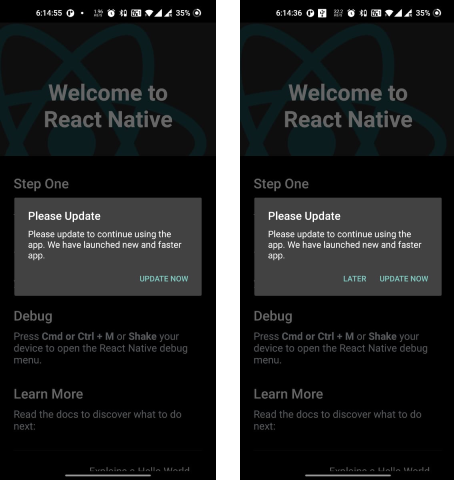
Android
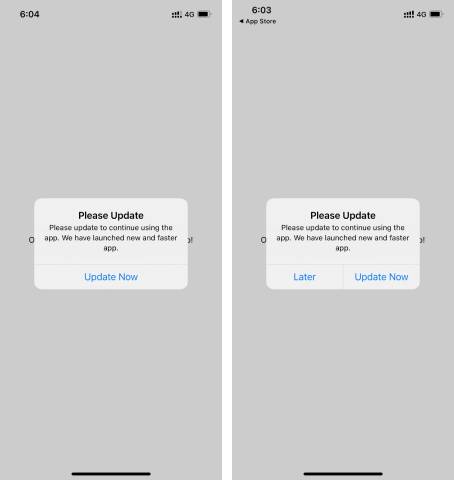
- For force upgrade only Update button is enable and user cannot skip it.
- For recommended upgrade Update and Later button is enable. User can skip it.
iOS
Changelog
Please see CHANGELOG for more information what has changed recently.
Need help?
If you're looking for help, please write to us at [email protected]
results matching ""
